

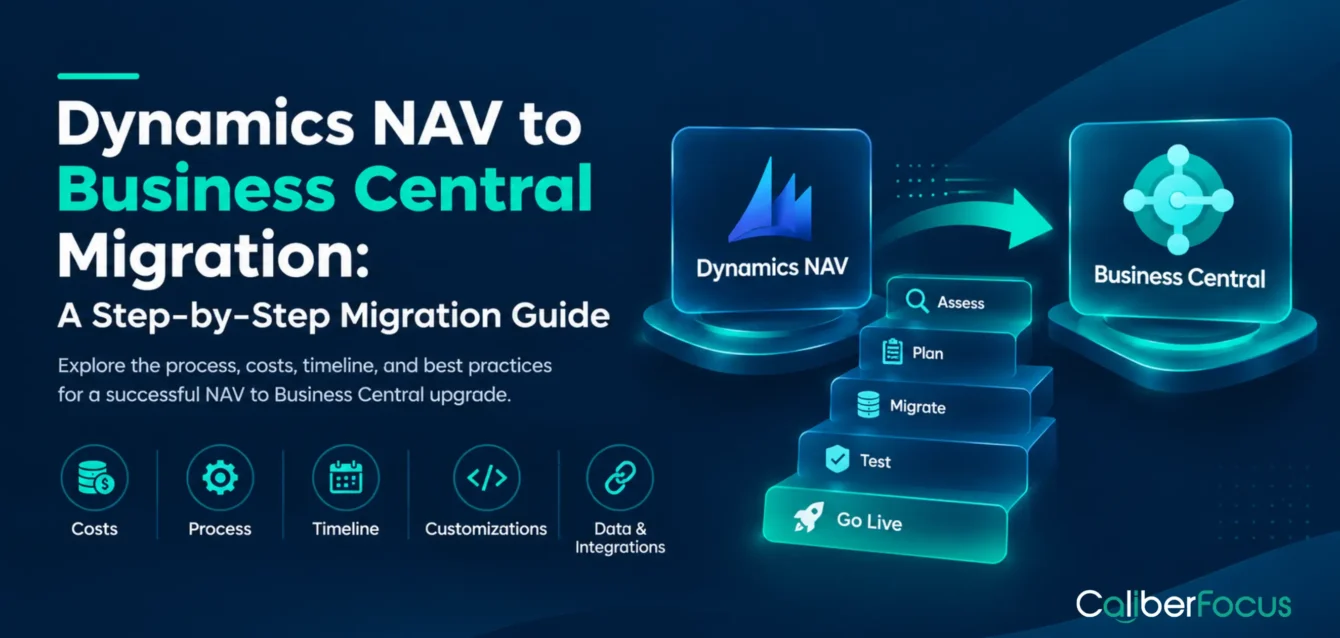
Upgrading from Microsoft Dynamics NAV to Dynamics 365 Business Central involves more than installing a newer ERP version. Businesses must account for existing financial records, inventory operations, customizations, reporting, and integrations that need to continue functioning after the transition.
A successful NAV to Business Central upgrade requires a supported technical path alongside careful planning for data conversion, application compatibility, and business continuity. This is where a structured Dynamics 365 migration approach becomes important, particularly for organizations running NAV 2018 or older versions that may require intermediate upgrades and C/AL customization changes.
This guide explains the Dynamics NAV to Business Central migration process, including supported upgrade paths, technical prerequisites, data upgrades, customization requirements, costs, and go-live considerations.
Which Route Applies to Your NAV Version?
Every NAV environment has different upgrade requirements. Discuss your version, customizations, add-ons, data, and target deployment with our team to identify a suitable upgrade approach and the risks to address first.
Discuss Your NAV UpgradeDynamics NAV to Business Central Upgrade at a Glance
| Upgrade consideration | What businesses should know |
| Migration destination | Dynamics 365 Business Central online or a supported on-premises deployment |
| Upgrade path | Older NAV versions may require intermediate upgrades before reaching the target Business Central release |
| NAV 2018 support | Mainstream support ended January 11, 2023; extended support ends January 12, 2028 |
| Customizations | Existing C/AL modifications must be assessed for conversion, replacement, or retirement |
| Data upgrade | Financial, operational, and historical records require version-specific conversion and validation |
| Business continuity | Critical transactions, integrations, and reporting must be tested before production cutover |
Why Upgrade from Dynamics NAV to Business Central?
Many organizations continue using Dynamics NAV because it supports established financial and operational processes. However, years of customizations, third-party applications, and changing business requirements can make the environment increasingly difficult to maintain.
A distributor expanding into new warehouses may need better inventory visibility across locations. A finance team managing multiple companies may want to reduce manual reporting and consolidation activities. Meanwhile, IT teams may face compatibility challenges when connecting older NAV applications with newer business systems.
Upgrading to Business Central provides an opportunity to reassess these limitations while moving to a newer ERP platform.
Dynamics NAV End of Life: What Does It Mean for Businesses?
Dynamics NAV end-of-life dates depend on the version in use. NAV 2018, for example, reached the end of mainstream support in January 2023 but remains in extended support until January 2028.
| NAV 2018 support milestone | Date | Business implication |
| Mainstream support ended | January 11, 2023 | Standard mainstream support and product enhancements are no longer available |
| Extended support ends | January 12, 2028 | Organizations should establish a modernization plan before the remaining support period ends |
An unsupported NAV environment does not automatically stop functioning. However, continuing to operate older software can increase maintenance challenges, compatibility risks, and dependence on specialized technical resources.
The business decision is therefore not simply whether NAV still works, but whether it can continue supporting future operational requirements at an acceptable cost and risk.
Dynamics NAV vs. Business Central: What Changes After Upgrading?
Business Central retains many financial and operational capabilities familiar to NAV users while introducing a modern application architecture, updated integration options, and a cloud deployment model.
| Business area | Dynamics NAV | Dynamics 365 Business Central |
| Financial management | Established accounting and financial reporting processes | Financial management with current Business Central functionality and integrations |
| Deployment | Primarily customer-managed, on-premises environments | Cloud service and supported on-premises deployment |
| Customization | C/AL modifications and NAV-specific add-ons | AL extensions and supported application extensibility |
| Integrations | Existing NAV interfaces and third-party connectors | APIs, connectors, and extension-based integrations |
| Application updates | Version upgrades managed through the existing deployment model | Regular service updates for Business Central online |
| Reporting | NAV reports and connected reporting applications | Business Central reporting and supported analytics integrations |
Before deciding which legacy functionality to retain, businesses should evaluate the available Dynamics 365 Business Central ERP features against their existing requirements.
Not every NAV customization needs to be recreated. Some business requirements may already be supported through standard Business Central functionality.
Dynamics NAV to Business Central Upgrade Paths: Which Route Applies?
The supported upgrade route depends on the existing NAV version, the target Business Central release, and whether the organization plans to use Business Central online or on-premises.
Older NAV versions cannot necessarily be upgraded directly to the latest Business Central release. Microsoft documents intermediate upgrade requirements to address changes in application architecture, database structures, and customization models.
Find Your NAV Upgrade Path
Answer three quick questions to identify the route to explore and the details to confirm before planning your upgrade.
NAV 2018 to Business Central Upgrade Path
For organizations planning a NAV 2018 to Business Central upgrade, Microsoft’s documented on-premises upgrade route to Business Central 2026 release wave 2 (version 29) includes these stages:
Dynamics NAV 2018 (v11) → Business Central v14 → Business Central v25 → Business Central v29
Business Central v14 is an intermediate technical upgrade stage rather than the intended long-term production destination. The process also requires addressing the transition from C/AL customizations to the AL extension model.
Organizations targeting Business Central online must additionally follow Microsoft’s applicable cloud migration requirements.
The exact upgrade path should always be confirmed against the target release before technical execution.
Source: Microsoft Business Central Upgrade Paths
What If the Business Runs an Older NAV Version?
Organizations using NAV versions earlier than 2018 may require additional intermediate upgrades.
| Existing NAV version | Upgrade consideration |
| NAV 2018 | Follow the supported Business Central intermediate upgrade route |
| NAV 2015–2017 | Upgrade through the required NAV or Business Central intermediate releases |
| NAV 2013 / 2013 R2 | Additional NAV upgrade stages may be necessary before the Business Central transition |
| NAV 2009 SP1 / R2 | Multiple intermediate upgrades and extensive compatibility assessment may be required |
These are planning considerations, not universal upgrade sequences. The exact supported path depends on the source build, target release, deployment model, and applicable Microsoft guidance.
Not Sure Which Stages Your Build Needs?
Share your NAV version and build number with our team. We’ll help confirm the supported route, intermediate releases, and prerequisites for your intended Business Central target.
Get a Free NAV Upgrade Path CheckFull Upgrade vs. Reimplementation: Which Approach Makes Sense?
A full technical upgrade and a reimplementation serve different business requirements.
A full upgrade follows the supported application and database conversion process to preserve compatible business data and existing functionality. A reimplementation establishes a new Business Central environment and transfers selected records based on the future operating model.
| Decision factor | Full technical upgrade | Reimplementation |
| Existing data | Retains supported data through the upgrade process | Migrates selected records |
| Customizations | Requires conversion or remediation | Rebuilt only where necessary |
| Business processes | Emphasizes continuity | Allows greater process redesign |
| Historical records | Can preserve compatible transactional history | May require separate archival or reporting |
| Main consideration | Technical compatibility and upgrade complexity | New configuration and business-process changes |
For example, a manufacturer with extensive historical production records and established workflows may prioritize continuity. Another organization with obsolete customizations and plans to redesign its operating model may find reimplementation more appropriate.
The decision should follow an assessment of data requirements, customization dependencies, and the business value of retaining the existing application structure.
Before Upgrading: Assess Your Dynamics NAV Environment
A reliable upgrade plan begins with understanding the current NAV environment. Version compatibility is only one part of the assessment. Businesses must also identify which processes, data structures, and connected applications need to continue functioning.
The assessment should cover:
| Assessment area | What needs to be examined | Why it matters |
| NAV version | Release, cumulative updates, database, and infrastructure | Determines the technical upgrade path |
| Business processes | Finance, purchasing, sales, inventory, manufacturing, and reporting | Identifies critical workflows |
| Customizations | Modified C/AL objects, custom tables, and add-ons | Establishes conversion requirements |
| Data | Transaction history, master records, database volume, and quality | Influences upgrade and reconciliation effort |
| Integrations | CRM, ecommerce, warehouse, banking, and reporting systems | Identifies application dependencies |
| Business continuity | Financial close, order processing, and operational peak periods | Helps establish cutover constraints |
For example, a company using standard NAV accounting functionality may have a relatively straightforward functional transition. A distributor with customized warehouse workflows, pricing rules, and ecommerce integrations will need more extensive compatibility and process testing.
These findings should inform the target configuration and the Business Central implementation process, ensuring that business requirements are addressed before technical execution.
Dynamics NAV to Business Central Migration: 7 Key Steps
The Navision upgrade to Business Central steps should follow Microsoft’s supported technical route while accounting for data conversion, customization changes, integration dependencies, and operational readiness.
The following seven stages explain how organizations can structure the migration from initial assessment through production stabilization.
Step 1: Confirm the Supported Upgrade Path
Start by identifying the exact NAV version, cumulative update level, database environment, and intended Business Central destination.
For NAV 2018, the documented route to Business Central v29 requires intermediate upgrades through v14 and v25. Older NAV environments may require additional stages.
The technical team should confirm the required intermediate versions, infrastructure prerequisites, database compatibility, and supported deployment approach.
Expected outcome: An approved upgrade route with the necessary environments, dependencies, and technical risks documented.
Step 2: Define the Target Business Central Configuration
The objective is not necessarily to reproduce every NAV screen, report, and customization.
Consider a distributor using NAV for purchasing, inventory, sales orders, and financial reporting. The company may want to preserve its core transaction processes while replacing custom reports or changing how inventory information reaches its ecommerce platform.
Before configuration begins, the project team should distinguish between:
- Retain: Essential business functionality that must continue.
- Replace: Legacy customizations that standard Business Central functionality can address.
- Redesign: Workflows requiring a different configuration, extension, or integration approach.
These decisions define the functional scope and reduce unnecessary redevelopment.
Step 3: Convert C/AL Customizations to AL
C/AL customization conversion is a major technical consideration when upgrading older NAV environments.
Existing modifications may involve pages, reports, codeunits, tables, and application logic. Because Business Central uses an extension-based development model, these customizations must be evaluated rather than assumed to work after upgrading.
| Customization finding | Appropriate action |
| Standard Business Central functionality meets the requirement | Replace the legacy modification |
| Business-specific logic remains necessary | Convert or redevelop using supported AL extensions |
| Functionality is no longer used | Retire after checking dependencies |
| Third-party add-on remains essential | Confirm a supported replacement or upgrade path |
For example, a custom NAV approval process may no longer require the same code if supported Business Central approval functionality meets the business requirement.
The priority is preserving necessary functionality without carrying forward obsolete technical complexity.
Know What You’re Converting Before You Quote It
The customization assessment sheet lists each customization, its objects, business owner, usage, bucket, and effort rating. Contact our team to discuss your assessment and upgrade scope.
Discuss Your Upgrade ScopeStep 4: Prepare and Execute the NAV Data Upgrade
Data preparation should begin before the first technical upgrade rehearsal.
Review duplicate master records, obsolete inventory items, inconsistent data, and custom tables that may require additional conversion activities. The upgrade should then follow the database conversion procedures documented for each intermediate release.
Typical sequence:
Source database assessment → Backup and preparation → Intermediate upgrade → Application and data conversion → Reconciliation
For organizations operating multiple companies, financial validation should cover the relevant company records and transactions.
Successful technical conversion must be followed by business verification before the upgraded environment is accepted.
Step 5: Rebuild Integrations and Validate Connected Workflows
Existing NAV integrations may rely on interfaces or custom logic that require changes in Business Central.
For example, a warehouse management integration may exchange sales orders, stock availability, shipment confirmations, and inventory adjustments with the ERP.
Testing should follow the complete transaction:
Sales order received → Inventory availability confirmed → Warehouse shipment completed → Stock updated → Invoice posted
Each stage must produce the expected result across connected applications.
The appropriate Business Central integration methods depend on the applications involved, required data exchange, supported interfaces, and monitoring requirements.
Step 6: Test the Upgrade and Rehearse Cutover
Functional testing should reflect how employees use the ERP, rather than checking individual modules in isolation.
Finance teams should verify journal posting, balances, settlements, and reporting. Operations teams need to test purchasing, inventory, sales fulfillment, and production processes where applicable.
Mock cutovers should answer three practical questions:
- Can the technical upgrade finish within the approved downtime window?
- Can business teams complete reconciliation and acceptance testing before operations resume?
- Are recovery procedures available if critical validation fails?
The final cutover plan should be based on rehearsal results, not assumptions about upgrade duration.
Rehearse Before You Commit to a Date
The mock cutover runbook covers the downtime window, task owners, reconciliation checkpoints, acceptance criteria, and recovery steps for each rehearsal. Talk to our team about planning a structured cutover for your upgrade.
Discuss Your Cutover PlanStep 7: Go Live and Stabilize Business Operations
Production cutover should begin only after critical testing, integration checks, reconciliation, and business acceptance criteria are satisfied.
Once Business Central becomes operational, the support team should prioritize issues affecting financial posting, order processing, inventory, integrations, user permissions, and essential reporting.
Post-go-live monitoring should focus on the transactions that carry the greatest operational or financial risk.
A successful upgrade is measured by stable business operations, not simply by whether users can access Business Central.
NAV to Business Central Data Upgrade: What Happens to Existing Records?
A NAV to Business Central data upgrade involves converting and validating the financial and operational information stored in the existing ERP.
Depending on the upgrade approach, this may include general ledger entries, customer and vendor records, open orders, inventory balances, production information, historical transactions, and custom data.
For supported technical upgrades, Microsoft provides version-specific application and database conversion processes. However, business teams must still verify that the upgraded information is accurate and usable.
Which NAV Data Areas Require Validation?
| Data area | What needs to be validated | Why it matters |
| General ledger | Account balances, posting groups, dimensions, and historical entries | Maintains financial reporting and period-close accuracy |
| Customers and vendors | Master records, outstanding balances, payment terms, and transaction relationships | Supports collections and supplier payments |
| Sales and purchasing | Open orders, receipts, shipments, and invoicing status | Preserves existing business commitments |
| Inventory | Item records, quantities, valuation, locations, and reservations | Maintains stock availability and inventory accuracy |
| Manufacturing | Bills of materials, routings, production orders, and work-in-progress data | Supports production planning and costing |
| Custom data | Extension-related records and relationships with standard tables | Preserves required business-specific functionality |
These are validation categories, not a guarantee that every custom record or data structure will transfer automatically.
Data Cleanup, Conversion, and Reconciliation
Older NAV databases may contain duplicate records, obsolete inventory items, and unused custom tables. These should be reviewed before upgrading, while preserving information required for financial reporting, audits, and business operations.
Three areas require particular attention:
- Data conversion: Verify that standard and custom records are converted through the supported upgrade process.
- Financial reconciliation: Match general ledger balances, receivables, payables, and inventory-related financial values.
- Operational continuity: Confirm that open orders, inventory movements, and related transactions remain accurate and usable.
The database upgrade should not be considered complete until finance and operations teams approve the relevant validation results.
How Should Historical NAV Data Be Handled?
Historical-data requirements depend on whether the organization chooses a full technical upgrade or reimplementation.
A supported full upgrade can retain compatible transactional history through the documented conversion process. Reimplementation may require selective data migration, archival, or separate historical reporting arrangements.
For example, a distributor may need active sales orders and inventory balances in Business Central while retaining older completed transactions for audits, reporting, or customer inquiries.
The decision should establish what must remain operational, what requires historical access, and what must be retained under applicable business and legal requirements.
What Happens to NAV Customizations, Reports, and Integrations?
Customizations and third-party dependencies can significantly influence upgrade complexity, particularly in NAV environments that have been modified over several years.
The important distinction is between business functionality that must continue and legacy implementation methods that may no longer be appropriate.
C/AL Customizations and Extensions
Each customization should be assessed for business relevance, technical compatibility, and available standard functionality.
Some requirements can be supported through Business Central configuration. Others require AL extensions or redevelopment. Obsolete modifications should be retired after confirming they are no longer needed.
Reports and Business Documents
Custom financial reports, invoice layouts, operational reports, and other documents may depend on NAV-specific objects or fields.
Even when the underlying records remain available, report definitions and layouts may require changes.
Finance and operations teams should validate both report functionality and the accuracy of the information presented.
Third-Party Applications
NAV add-ons may support warehouse management, ecommerce, manufacturing, payroll, or industry-specific processes.
Before upgrading, confirm whether each application has a supported Business Central version or replacement integration.
Where no compatible option exists, the project must account for alternative functionality or development work.
Dynamics NAV to Business Central Upgrade Cost and Timeline
The cost of a Dynamics NAV to Business Central upgrade depends on the starting version, intermediate upgrade requirements, customizations, data volume, integrations, and business-process changes.
An organization running NAV 2018 with limited customizations may face a different scope from a company using NAV 2009 with extensive C/AL modifications and multiple third-party applications.
What Determines NAV Upgrade Cost?
| Cost factor | What influences the investment |
| Starting NAV version | Required intermediate upgrades and technical prerequisites |
| Customizations | C/AL conversion, extension development, and testing |
| Data | Database volume, quality, historical records, and reconciliation |
| Integrations | Replacement interfaces, third-party applications, and validation |
| Target configuration | New workflows, permissions, reporting, and company requirements |
| Testing and cutover | Upgrade rehearsals, downtime constraints, and business acceptance |
| Licensing and support | Business Central subscriptions, extensions, and ongoing services |
Organizations should also account for the broader ERP implementation cost factors, including configuration, migration, training, and post-go-live support.
A realistic budget separates one-time upgrade activities from recurring licensing and maintenance costs.
How Long Does a NAV to Business Central Upgrade Take?
There is no universal upgrade duration.
The timeline depends on the number of intermediate releases, customization remediation, database conversion effort, integration changes, and testing requirements.
A project schedule should cover assessment, technical preparation, conversion, functional testing, mock cutovers, production deployment, and stabilization.
Mock upgrade results provide a more dependable estimate of technical downtime than assumptions based solely on database size or the number of ERP users.
Common NAV to Business Central Upgrade Mistakes
Upgrade problems often originate from assumptions made before the technical and business requirements are fully understood.
| Common mistake | Why it creates problems | Better approach |
| Assuming a direct upgrade is possible | Required intermediate releases may be overlooked | Confirm the supported source-to-target upgrade path |
| Treating C/AL conversion as automatic | Custom logic may require redesign and testing | Assess extension compatibility and business requirements |
| Overlooking third-party applications | Critical workflows may lose required functionality | Confirm supported replacements early |
| Validating only financial totals | Open orders and inventory transactions may remain incorrect | Reconcile financial and operational data |
| Testing modules independently | Cross-system failures may go undetected | Test complete business transactions |
| Planning cutover without rehearsals | Actual downtime may exceed the approved window | Conduct mock upgrades and document acceptance criteria |
Resolving these issues before production deployment reduces the risk of disruption during the final transition.
Dynamics NAV to Business Central Migration Readiness Checklist
Before approving the upgrade, confirm that the essential technical and business requirements have been addressed.
- Version readiness: The source NAV version and supported upgrade path are confirmed.
- Target environment: Business Central deployment and target release are selected.
- Business requirements: Critical financial and operational workflows are documented.
- Customizations: C/AL modifications and third-party add-ons have been assessed.
- Data strategy: Conversion, reconciliation, and historical-data requirements are defined.
- Integrations: Required connections and replacement approaches are agreed.
- Testing: Business acceptance criteria and mock upgrade activities are planned.
- Cutover: Downtime constraints, ownership, and recovery procedures are documented.
- Support: Post-go-live responsibilities and escalation procedures are established.
Any unresolved requirement should be assessed for its effect on upgrade feasibility, budget, or deployment readiness.
Key Takeaways
- Dynamics NAV to Business Central migration requires a supported, version-specific upgrade path.
- NAV 2018 upgrades to Business Central v29 involve intermediate releases and C/AL-to-AL conversion.
- Full technical upgrades and reimplementations have different implications for data, customizations, and business processes.
- Financial reconciliation and operational testing are essential after data conversion.
- Integrations and third-party applications should be evaluated before technical execution.
- Upgrade costs and timelines should reflect actual dependencies and rehearsal results rather than generic estimates.
Frequently Asked Questions
Can Dynamics NAV Be Upgraded to Business Central?
Yes. Microsoft provides supported upgrade paths from several Dynamics NAV versions to Business Central. The required intermediate releases depend on the starting version, target release, and deployment model.
Can NAV 2018 Be Upgraded Directly to the Latest Business Central Version?
No. For Business Central 2026 release wave 2 (v29), Microsoft’s documented on-premises upgrade path from NAV 2018 includes intermediate upgrades through Business Central v14 and v25.
What Is the Difference Between a NAV Upgrade and Data Migration?
A full technical upgrade uses supported application and database conversion processes to preserve compatible business data. A selective data migration or reimplementation establishes a new environment and transfers the records required by the chosen scope.
What Happens to Existing NAV C/AL Customizations?
C/AL customizations must be assessed for conversion, replacement, or redevelopment using supported AL extensions. Some requirements may already be supported through standard Business Central functionality.
Does NAV Historical Data Move to Business Central?
A supported full upgrade can retain compatible historical records through the documented upgrade process. Reimplementation may require selective migration or separate archival arrangements.
Is Dynamics NAV 2018 Still Supported?
NAV 2018 remains in extended support until January 12, 2028. Mainstream support ended January 11, 2023.
How Much Does a NAV to Business Central Upgrade Cost?
The cost depends on the existing NAV version, intermediate upgrade requirements, customizations, data conversion, integrations, testing, licensing, and support needs. An environment assessment is necessary to establish a meaningful estimate.
YOUR NEXT ERP STEP
Plan Your Dynamics NAV to Business Central Upgrade
Moving from Dynamics NAV to Business Central starts with understanding your current ERP environment and the work required to reach your target platform.
CaliberFocus can help you: evaluate migration requirements, identify technical and operational dependencies, and plan for data accuracy, application compatibility, and business continuity.